How to Open EPUB Files on Windows 11
You downloaded a book from a public library, an independent bookshop or Project Gutenberg, double-clicked it, and Windows asked which app should open it. If you have searched for an answer, you have probably found advice that no longer works. This guide explains why, and walks through a setup that does.
What an EPUB file actually is
EPUB is the open standard for ebooks. It is what most stores outside Amazon sell, what public libraries lend, and what free-book sites like Project Gutenberg and Standard Ebooks publish. Inside, an EPUB is a ZIP archive holding a set of web pages (one per chapter), the book's stylesheets and images, a cover, and a small file that lists the chapters in reading order.
That structure is why EPUB is reflowable: there are no fixed pages. The text flows to fit your window, and you choose the font, size and spacing. It is also why opening an EPUB in the wrong program is so disappointing — a ZIP tool shows you a folder of HTML files, and a browser shows you one chapter with no way to the next.
Why Windows 11 cannot open EPUB on its own
For a few years, the original Microsoft Edge could read EPUB books. When Edge was rebuilt on Chromium in 2019
and 2020, that feature was removed, and nothing in Windows replaced it. Windows 11 ships with no EPUB reader at
all, so a fresh install has nothing to offer when you double-click a .epub file.
Many older guides still recommend Edge, or suggest renaming the file to .zip. Neither gets you a
readable book. What you need is a dedicated reader.
What to look for in an EPUB reader
Most people who read more than the occasional book end up caring about the same handful of things:
- A library, not a file picker. Covers and titles on a shelf, so you are not hunting through
Downloadsfor9780141439518.epub. - It remembers your place. Reopen a book and you are on the same paragraph, not at the start of the chapter.
- Comfortable typography. Adjustable size, line spacing and line length, and a few themes that are easy on the eyes in the evening.
- Other formats too. Real collections are mixed: Kindle files, PDFs, plain-text novels, comics. One app for all of them beats four.
- Privacy. Your reading history is personal. A reader that needs an account or uploads your library to a server is asking for more than it needs.
Opening EPUB files with LeafReader, step by step
LeafReader is a desktop reader for Windows built around exactly that list. It works entirely offline, needs no account, and also opens MOBI, AZW3, FB2, TXT, PDF and comic archives. Here is how to go from a folder of files to reading.
1. Install LeafReader
Get it from the Microsoft Store. Installing from the Store means updates arrive automatically and the app runs in Windows' standard sandbox.
2. Add your books
Click the + button at the top left of the library. You can Select files to add one or more books, or Choose a folder to bring in every book inside it, including subfolders. Duplicates are detected automatically, so adding the same folder twice does no harm.
Large folders are processed in the background. Books appear on your shelf at once and fill in their covers and details as they are read, so you can open the first one while the rest are still arriving.
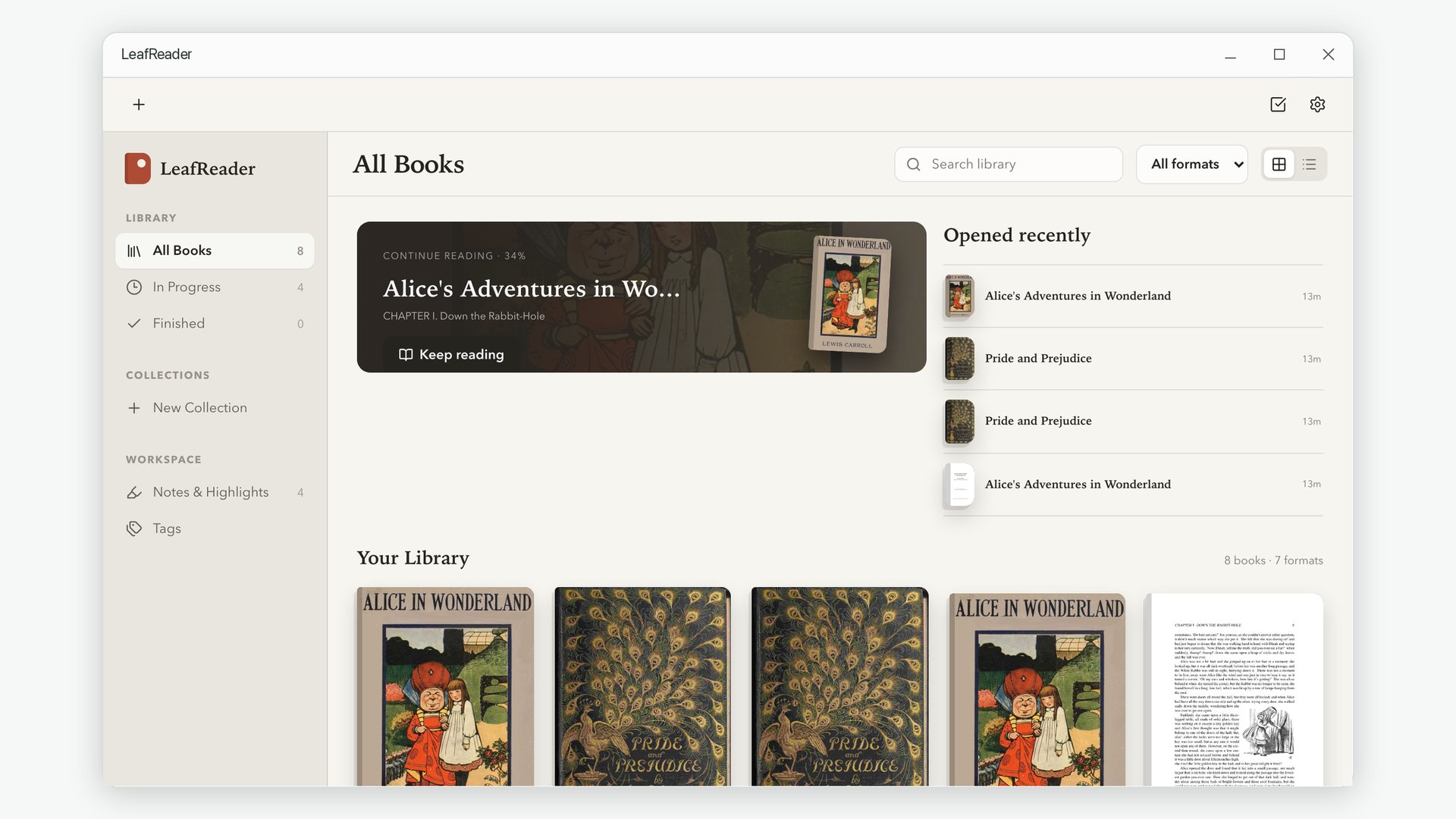
3. Open a book and make the page yours
Click a cover to see the book's details and contents, then Start reading. In the reader, the Aa button opens the type panel: choose a theme (Warm Paper, White, Sepia, Sage or Night), a typeface, the text size, line spacing and line length, and whether to read in pages or one continuous scroll. These settings apply to every book, so you set them once.
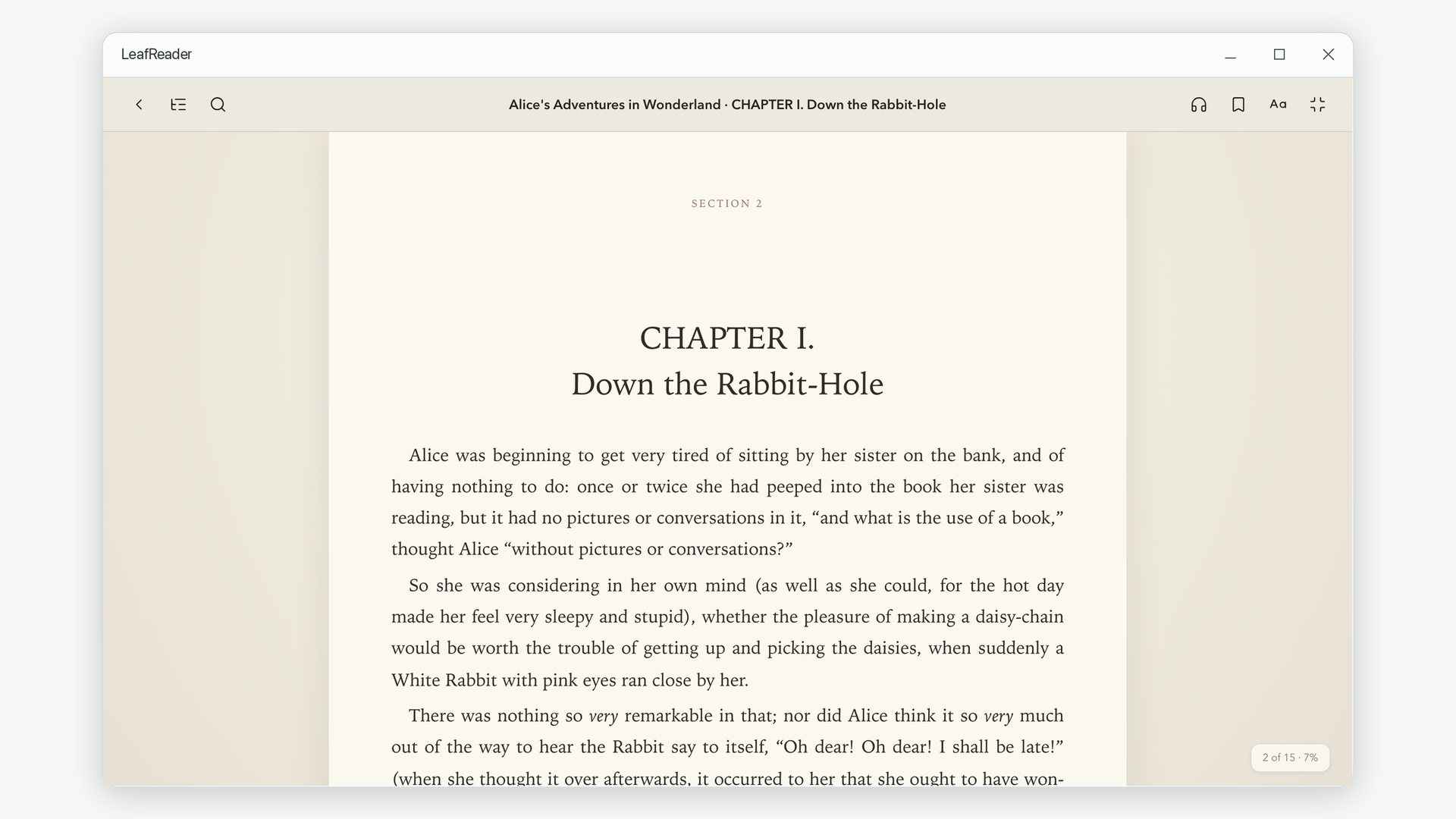
4. Move around the book
The contents button at the top left lists every chapter. The arrow keys and Page Up / Page Down turn one screen at a time and roll on to the next chapter at the end. Ctrl+F finds a word or phrase anywhere in the book, and F11 switches to full screen. When you close the book, your exact position is saved.
5. Highlight and take notes
Select any passage to highlight it in one of several colours, attach a note, or copy the quote. Everything you mark ends up in the Notes workspace, where you can filter by book or tag and export it all as Markdown.
Troubleshooting EPUB files that will not open
The book was bought from a store with DRM
Some stores lock their EPUBs with digital rights management, which ties the file to that store's own app. No third-party reader can open those files, LeafReader included. Books from Project Gutenberg, Standard Ebooks, many independent publishers and DRM-free shops open normally.
The book looks plain compared with the original
By default LeafReader applies your chosen typography so every book reads consistently. If a book's own design matters to you — a poetry collection, a cookbook — turn on Respect publisher styles in Preferences to keep the publisher's fonts and layout where they do not fight your theme.
A Japanese or manga EPUB shows sideways or in the wrong order
Books typeset for vertical Japanese text or right-to-left page turns declare it inside the file, and LeafReader follows that automatically. You can also switch reading direction and vertical text for any single book from the type panel.
Read your EPUB books on Windows
One offline reader for EPUB, Kindle formats, PDF and comics.
Get LeafReader from Microsoft Store