Listening to Ebooks on Windows: A Step-by-Step Read-Aloud Tutorial
Audiobooks are wonderful, but most of the books you own will never get one. Text-to-speech fills the gap: it turns any ebook into narration, so you can keep a novel going while you cook, walk on a treadmill or give your eyes a rest after a day at the screen. It also helps readers with dyslexia or low vision, and language learners who want to hear a text while following it on the page.
Windows already includes speech voices. This tutorial shows how to put them to work on your ebook collection, how to get better-sounding voices, and how to make listening comfortable for hours at a time.
What you need
- A Windows 10 or Windows 11 PC with speakers or headphones.
- Books in EPUB, MOBI, AZW, AZW3, FB2 or TXT format. These are text-based, so every word can be spoken. PDFs and comics are pages of layout or artwork rather than flowing text, and are not read aloud.
- LeafReader, installed from the Microsoft Store.
Step 1: Check which voices you have
Windows comes with a small set of voices for the language it was installed in. If your books are in other languages, add a voice for each one first, otherwise an English voice will try to read your French novel.
- Open Settings and go to Time & language → Speech.
- Under Manage voices, choose Add voices.
- Pick the languages you read in and install them. Each one adds one or more speakers.
- Restart LeafReader so it sees the new voices.
Voice quality varies a lot between languages and Windows versions. It is worth trying every speaker offered for a language; the difference between the best and the worst is often bigger than you would expect.
Step 2: Add your books
In LeafReader, click + in the library and choose Select files or Choose a folder. Books appear on your shelf straight away. If you have not used LeafReader before, How to Open EPUB Files on Windows 11 covers this part in more detail.
Step 3: Open a book and start read-aloud
- Open the book at the chapter you want to hear — the contents button lists them all.
- Click the headphones button in the toolbar at the top of the reader.
- The first time, LeafReader asks you to Choose a voice: pick the Language the book is written in, then a Voice. Regional variants such as US, UK and Australian English are grouped under one language, with the region shown next to each speaker.
- Confirm, and narration begins at the start of the chapter.
The voice you choose is saved with that book. Your Japanese novel can keep a Japanese speaker while your English history book keeps an English one, and you never have to pick again.
Step 4: Follow along and control playback
While a book is being read, the sentence being spoken is highlighted on the page and kept in view, so you can glance back at the text at any moment and find your place instantly. A bar along the bottom of the window holds the controls:
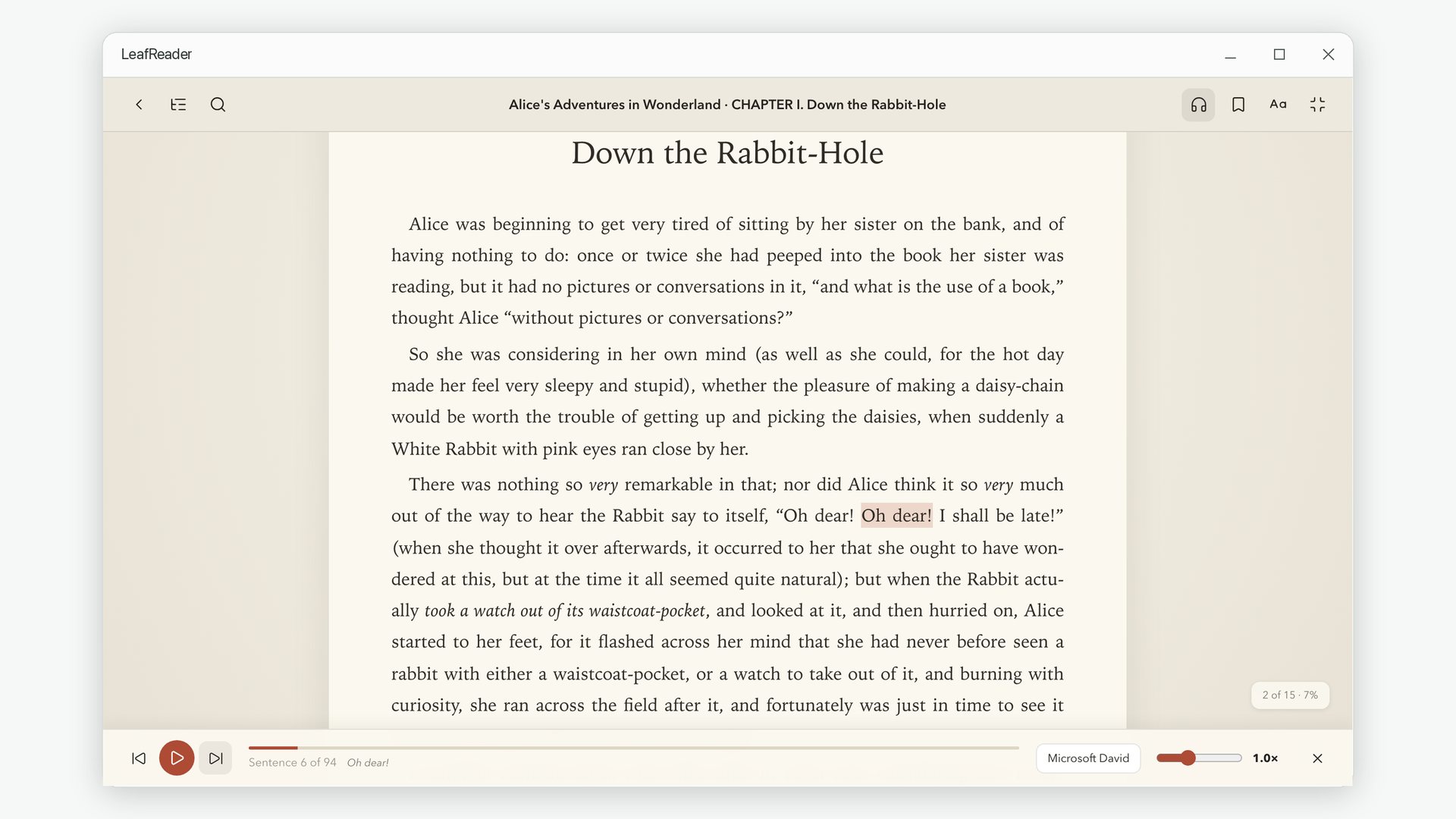
- Play / pause — or press the Space bar.
- Previous / next sentence — step back when your attention drifted, or skip ahead.
- Progress — "Sentence 6 of 94" and a bar showing how far through the chapter you are.
- Voice — switch speakers at any time; the new voice takes over from the current sentence.
- Speed — anywhere from 0.5× to 2×.
- Close — stop narration, or press Esc.
At the end of a chapter, the next one loads and narration carries on by itself, so a book keeps playing until it ends or you stop it.
Step 5: Find a comfortable speed
Most people settle somewhere between 1.0× and 1.4× for fiction, and a little slower for dense non-fiction or a language they are still learning. Speed is a global preference, so once you find yours it applies to every book. A useful trick: if you lose the thread at a faster speed, step back one sentence rather than dropping the speed for the whole chapter.
Tips for long listening sessions
Switch to full screen or a calmer theme
Press F11 to hide everything but the page, and pick the Sepia or Night theme from the Aa panel if you are listening in the evening.
Use headphones for dialogue-heavy books
Synthetic voices are clearest close to the ear. Headphones make quick exchanges of dialogue much easier to follow than laptop speakers.
Japanese books read correctly
Many Japanese books print small ruby readings above difficult kanji. LeafReader speaks the main text once and leaves the ruby out, so annotated words are not read twice.
Highlight as you listen
Hear a line you want to keep? Select it on the page to highlight it or add a note; it ends up in the Notes workspace with everything else.
Privacy
Narration uses the speech voices installed on your own PC. LeafReader itself has no account and no server, and your books are never uploaded anywhere for reading aloud.
Turn your library into audiobooks
Read-aloud for EPUB, Kindle, FB2 and TXT books, with the voices already on your PC.
Get LeafReader from Microsoft Store