How to Read MOBI and AZW3 Kindle Files on Windows
Kindle files turn up everywhere: in old backups, in bundles from independent authors, in collections passed along by friends, and in the folder you saved years ago before switching devices. On a Windows PC they often refuse to open, or open in an app that only wants to show books bought from one store. This guide sorts out the formats, explains which files can be read at all, and shows how to read the ones that can.
MOBI, AZW, AZW3 and KFX: what the extensions mean
Amazon has used several formats over the years, and the file extension tells you a lot:
- MOBI — the original Kindle format, inherited from the older Mobipocket reader. Simple layout, limited styling, still very common in older collections and self-published bundles.
- AZW — essentially MOBI with Amazon's own extension. Many AZW files are DRM-protected purchases; DRM-free ones read like MOBI.
- AZW3 (also called KF8) — the newer format introduced with later Kindle devices. Inside, it is built much like an EPUB: real chapters, proper stylesheets, better typography and fixed-layout support for comics and children's books.
- KFX — the format Amazon's current apps download purchases in. It is tied to Amazon's own readers.
The one thing no reader can get around: DRM
Before trying any app, it helps to know whether the file is protected. Books bought from the Kindle store are usually locked with digital rights management, which ties them to your Amazon account and Amazon's own apps. Those books are meant to be read in the Kindle app, and no third-party reader can open them — not LeafReader, not any other.
Plenty of Kindle-format files carry no DRM at all: books from authors and small publishers who sell direct, public-domain titles, and files converted from other formats. Those are the files this guide is about.
A quick test: if a file opens in one third-party reader, it is DRM-free and will open in others. If it opens nowhere except Amazon's apps, it is almost certainly protected.
Why "just use the Kindle app" is often not enough
Amazon's PC app is designed around your purchases. Files you got elsewhere sit outside its library, and mixing them in is awkward at best. If most of your collection is EPUB, PDF and the odd comic, juggling a separate app only for the Kindle files means two libraries, two sets of highlights and two places to search.
A general-purpose reader that opens every format keeps everything in one shelf with one set of notes.
Reading Kindle files with LeafReader
LeafReader opens MOBI, AZW and AZW3 alongside EPUB, FB2, TXT, PDF and comics, entirely offline. Here is how to bring a folder of Kindle files in.
1. Install and open LeafReader
Install it from the Microsoft Store and open it. The library starts empty until you add something.
2. Add the files or the whole folder
Click + in the library and choose Select files for a handful of books, or Choose a folder to import everything inside it, subfolders included. Each book is copied into LeafReader's own library folder, so your originals are never modified or moved.
If you own the same book as both MOBI and EPUB, both will be added — they are different files. Exact duplicates of the same file are skipped automatically.
3. Check the details
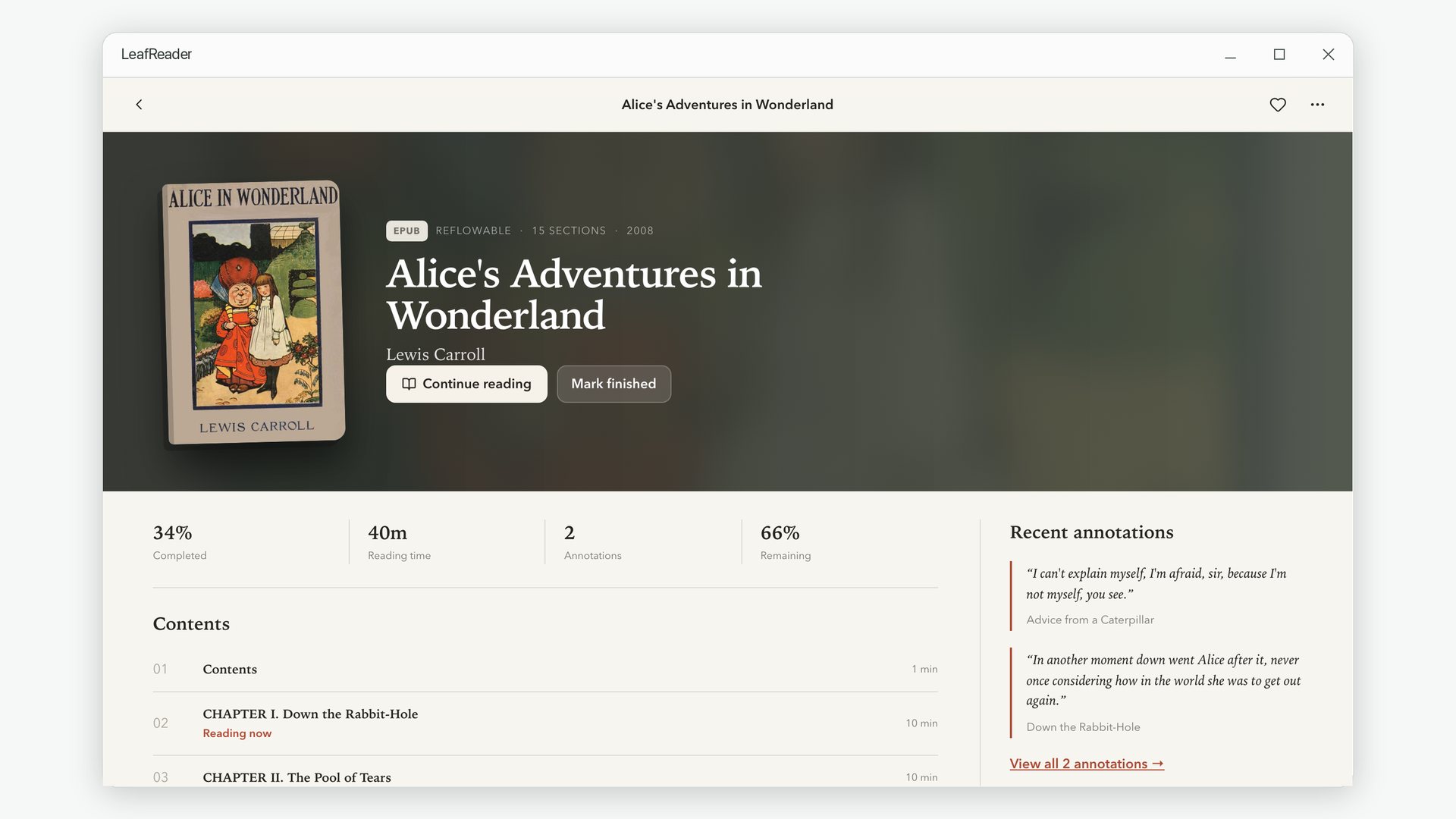
Classic MOBI files keep their title, author and chapter list in a small table of contents inside the file, and LeafReader reads them from there, so your shelf shows real titles and chapter names rather than "Section 1, Section 2". Click a cover to see the book's contents, reading time and recent highlights.
4. Read the way you like
Kindle books open in the same reader as EPUB, with the same themes, typefaces and spacing controls. Long MOBI chapters, which older converters often produced as one enormous file, are split into sensible parts so the contents list stays usable and your place is easy to find.
AZW3 books with a fixed layout — comics, manga and picture books — open page by page instead, as single pages or two-page spreads, with right-to-left order for manga.
5. Highlight, search and listen
Highlights and notes in Kindle files land in the same Notes workspace as everything else, and the full text is included in library-wide search. You can also have a Kindle book read aloud with any voice installed on your PC.
Common problems
A file fails to import
The usual causes are DRM (see above) or a KFX file renamed to .azw. Neither can be read outside
Amazon's apps.
The book has no cover
Some older MOBI files simply do not include one. The book still opens normally; the shelf shows a generated cover with the title instead.
The formatting looks different from a Kindle device
LeafReader applies your own typography for consistency. Turn on Respect publisher styles in Preferences if you would rather keep the book's original fonts and layout.
All your Kindle files in one library
Read DRM-free MOBI, AZW and AZW3 next to EPUB, PDF and comics.
Get LeafReader from Microsoft Store