Why You Can't Copy Text from a PDF (and How to Fix It)
You want one sentence from a PDF — a quote for an essay, a command from a manual, a definition from a textbook. You drag across it and nothing highlights. Or it highlights, but what lands on the clipboard is gibberish, or every line break in the wrong place. This is one of the most common frustrations with PDFs, and it has four quite different causes. Working out which one you have tells you whether it can be fixed at all.
Cause 1: the page is a picture, not text
A scanned book or a document that went through a photocopier is a stack of photographs. There are no letters in the file, only pixels that look like letters, so there is nothing to select.
How to tell: zoom in a long way. Real text stays crisp at any zoom; scanned text gets blurry or blocky, and you can often see slight tilt, specks or the shadow of the page's edge.
What fixes it: optical character recognition (OCR), which looks at the pictures and adds an invisible text layer on top. Many scanners and PDF editors can do this. Once a PDF has that layer, any reader that respects it lets you select text normally.
Cause 2: your reader turns the PDF into pictures
This one surprises people, because the PDF itself is fine. Some readers, especially lightweight viewers and apps built for comics, draw each PDF page as a flat image and show you that. It looks identical to the real page, but the text layer has been thrown away in the process, so selection is impossible no matter how good the file is.
How to tell: open the same file in a different app, such as your browser. If you can select text there, the file is fine and the reader is the problem.
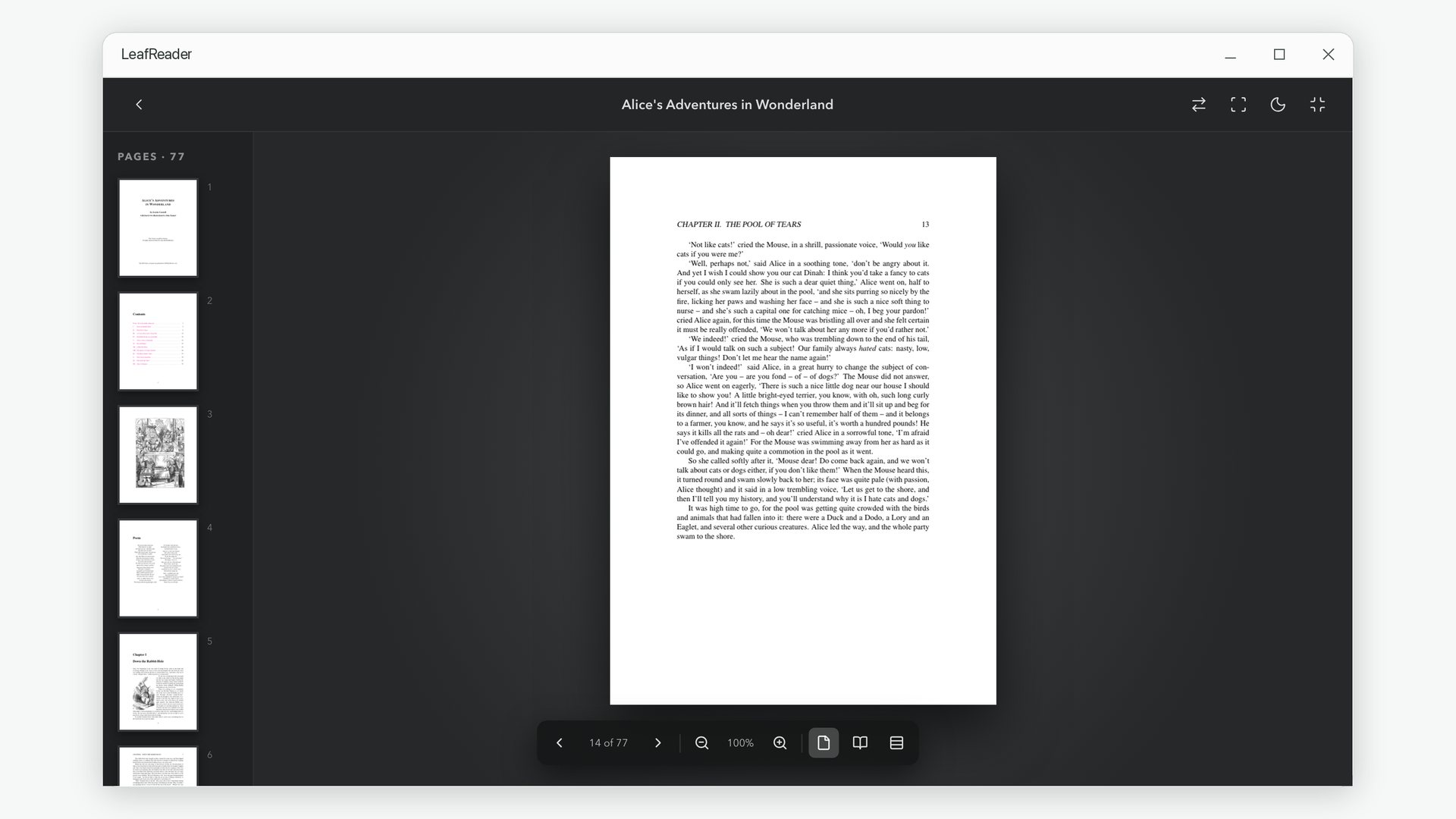
What fixes it: a reader that keeps the text layer. That is how LeafReader handles PDFs: each page is drawn sharply, and the original text sits exactly on top of it, so you can select, copy and search just as you would in the file's own editor.
Cause 3: the fonts have no map back to letters
Inside a PDF, text is stored as references to glyphs in an embedded font, plus (usually) a table that says which glyph is which letter. Some programs that produce PDFs leave that table out or fill it in wrongly. The page looks perfect, selection works, but what you paste is a string of symbols or the wrong letters entirely.
How to tell: selection highlights the right area, but the pasted text is nonsense — and it is the same nonsense in every app.
What fixes it: nothing in a reader can recover letters the file never recorded. Look for another edition of the document, or run OCR over it as if it were a scan.
Cause 4: copying works, but the result is messy
PDFs place each line of text at a position on the page; they do not know about paragraphs. When you copy, every line break comes along, hyphenated words stay split, and two-column layouts can interleave columns. This is the most common complaint, and it is a property of the format rather than a fault.
What helps: copy smaller pieces — a sentence or a paragraph at a time rather than a whole page — and paste into a plain-text editor first if you need to clean it up. For long quotations, a reflowable edition of the same book (EPUB) gives far cleaner results.
A quick checklist
- Zoom in. If the text goes blurry, it is a scan and needs OCR.
- Try another reader. If selection suddenly works, your old reader was turning pages into images.
- Paste into Notepad. If it is gibberish everywhere, the file's font tables are broken.
- If the text is right but the line breaks are not, copy shorter passages.
Reading PDFs comfortably in LeafReader
Beyond selection, a few things make long PDFs easier to live with:
- Search inside and across documents. Ctrl+F finds a phrase in the open PDF, jumps to the page and marks it, and the search in the Notes workspace looks through every book and PDF you have added.
- Single pages, spreads or one continuous scroll. Switch layouts from the toolbar at the bottom of the page, and zoom in or out from the same place.
- Thumbnails and the outline. The thumbnail strip jumps to any page, and the document's own outline appears as the contents list on its detail page.
- Dark pages at night. Invert the page colours for evening reading without losing the text layer.
LeafReader does not perform OCR. A scanned PDF opens and reads fine, but it has no text to select until a text layer has been added to the file.
PDFs you can actually copy from
Selectable, searchable PDFs alongside your ebooks and comics.
Get LeafReader from Microsoft Store